


Created by real people: Every post we publish is written by our team. AI plays only a small role for adjustments and polishing. We don’t aim for generic SEO content; our focus is on delivering authentic, high-quality value for the community.
What’s the best AI for generating UI?
AI has started to impact not only how we build apps, but also how we design them. Lately, tools like Figma Make, UX Pilot, Stitch, and others have become very popular thanks to their ability to generate UI from a prompt.
To be honest, I hadn’t used all of these tools before (only Figma Make and Stitch in a professional work), so this felt like a good chance to test them myself, compare their pros and cons, and share my honest thoughts as a UI/UX designer.
I also want to understand how close they are to replacing ‘traditional’ design workflows, or if they’ll simply become an essential part of the process.
In this post, I’ll test all AIs using the exact same prompt to see how each one interprets it and what they’re able to design.
Methodology
Prompt used
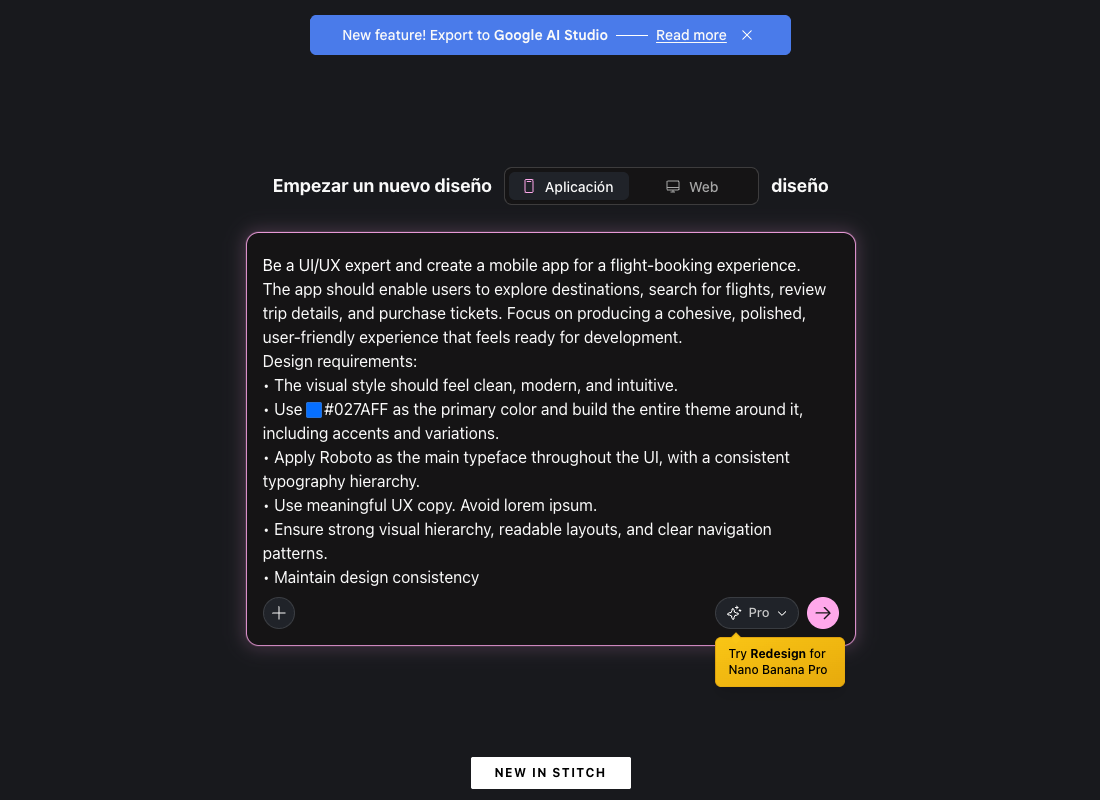
"Be a UI/UX expert and create a mobile app for a flight-booking experience. The app should enable users to explore destinations, search for flights, review trip details, and purchase tickets. Focus on producing a cohesive, polished, user-friendly experience that feels ready for development.
Design requirements:
• The visual style should feel clean, modern, and intuitive.
• Use #027AFF as the primary color and build the entire theme around it, including accents and variations.
• Apply Roboto as the main typeface throughout the UI, with a consistent typography hierarchy.
• Use meaningful UX copy. Avoid lorem ipsum.
• Ensure strong visual hierarchy, readable layouts, and clear navigation patterns.
• Maintain design consistency."
For the prompt, I kept things fairly generic so the AI would have enough freedom to propose ideas, while still defining a clear vertical for the app. I know some AIs generate full flows and others only produce a single screen, so giving them flexibility felt important. I also specified a primary color and a typeface to see how well each tool respects those initial styling requirements.
Evaluation criteria
Each AI tool will be evaluated based on the following aspects:
• Fidelity: how well it understands the prompt and translates the intention behind it.
• Visual quality: overall aesthetics, layout consistency, typography, color usage, and component choices.
• Usability: whether the generated UI could realistically serve as a starting point for a functional prototype.
• Iteration workflow: how easy it is to refine the output or generate variations.
• Code exportability: the tool’s ability to generate code useful for development.
• Plans and pricing: what subscription options exist, whether there’s a free plan, and how the paid tiers compare.
I’m not planning to score each category; instead, I’ll share my thoughts on how each tool performs in these areas. I’ll still choose which one I think works best overall. Of course, many of these points can be subjective, but I’ll try to stay as objective as possible.
Figma Make
Figma Make is a new product from Figma, launched in July 2025. It allows you to generate UI from a simple prompt, an image, or even a Figma frame. It stays fully within the Figma ecosystem, meaning you can easily move the generated results into other Figma tools.
(Figma also has a feature called First Draft for AI-generated UI, but in this post we’ll focus specifically on Figma Make.)
AI models:
Figma Make relies on multiple AI models rather than a single one. Figma works with external providers like OpenAI and Anthropic, but the exact models are not publicly disclosed.
Interface
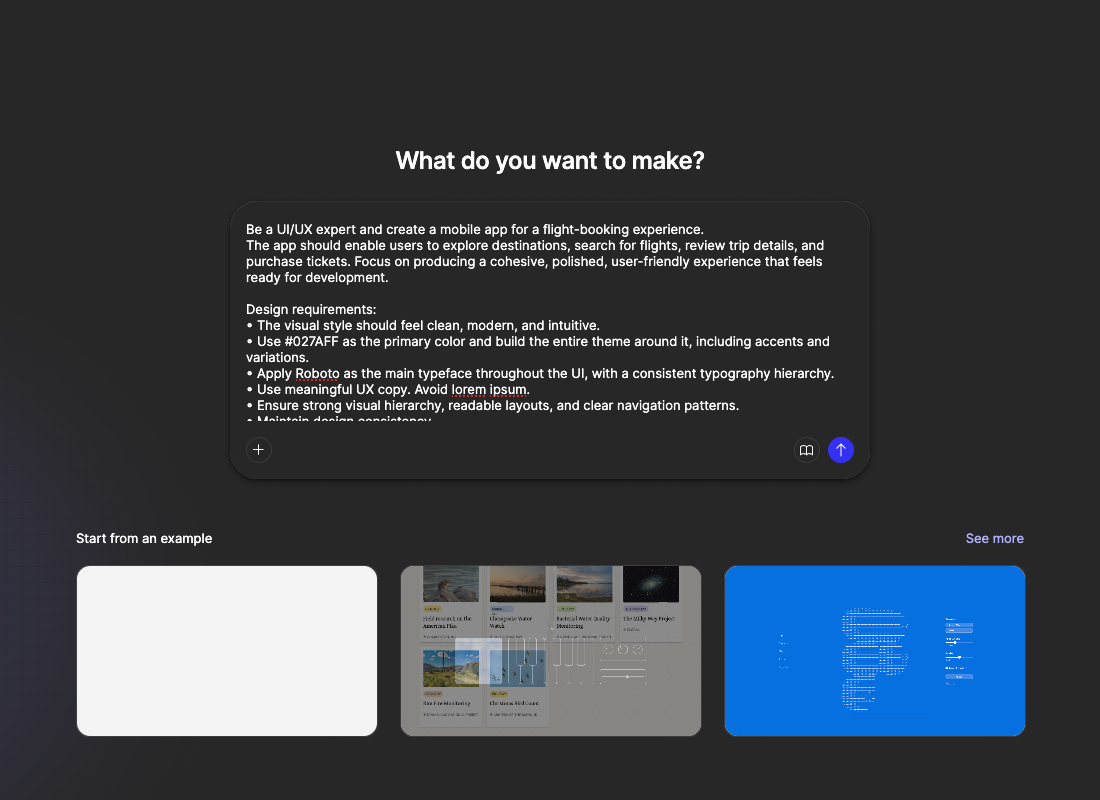
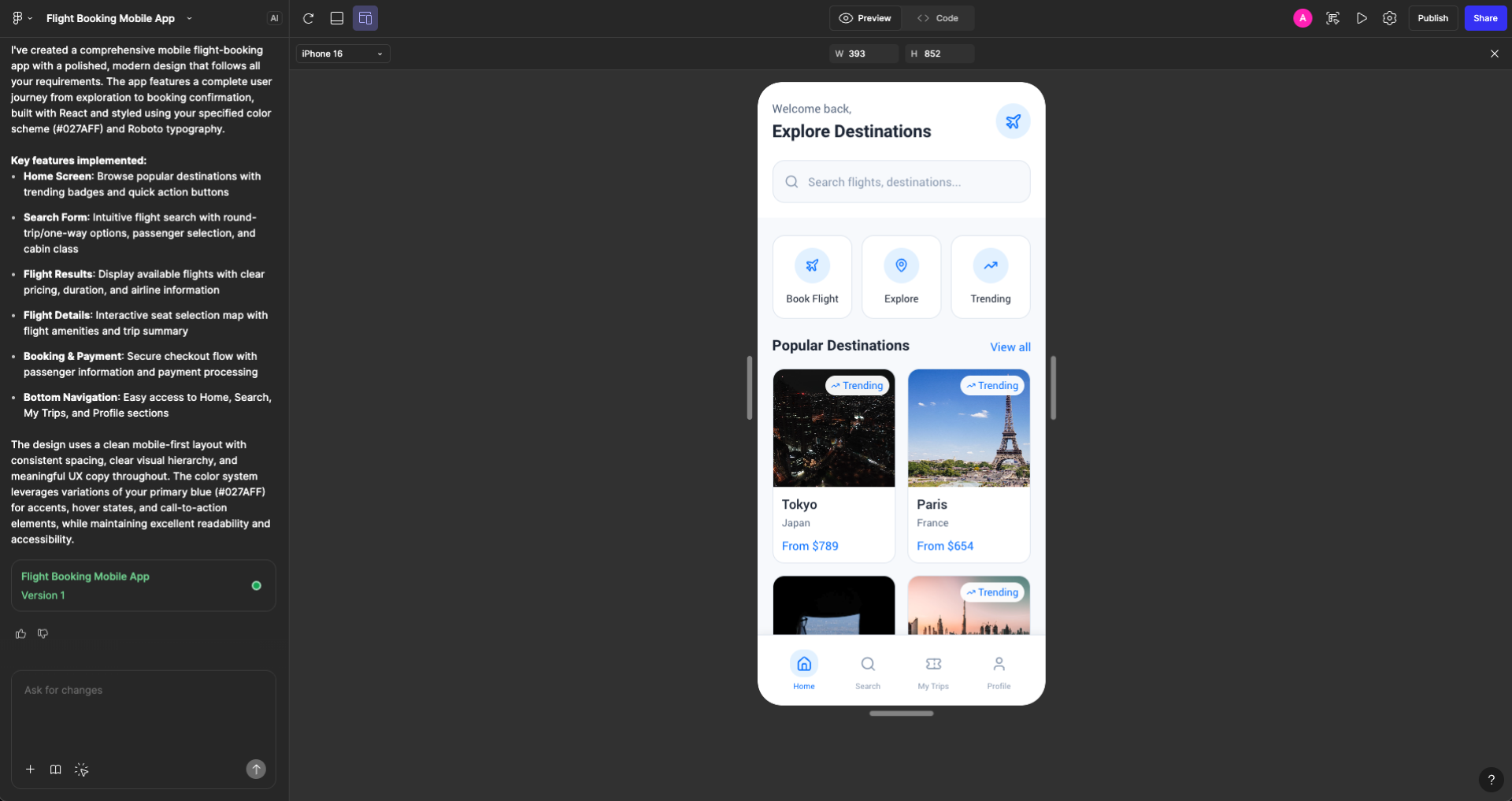
The interface is very clean, with the chat on the left side and the toolbar at the top. In the center, there’s a segmented control that lets you switch between the preview and the code view. At the top you’ll also find the console tools, the publish option, sharing features, and the button to copy the result into Figma Design.
Result
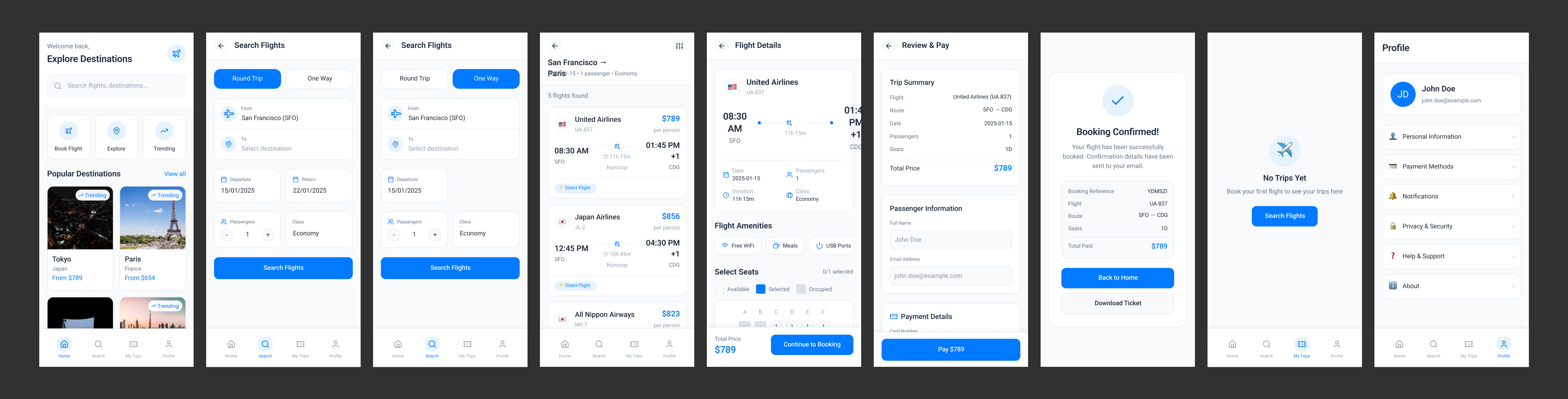
Figma Make generated a multi-screen result, including a flight search flow, a ticket purchase flow, and even a profile page. The prototype is interactive, which is great for validating an idea early on. You can quickly preview the prototype on different Android and Apple devices, which is a nice touch.
One interesting thing is that it created pickers with real options, and the prototype even includes basic validations, for example, you can’t complete the checkout without filling in the required fields. Overall, the result has very few issues, aside from a couple of text elements overflowing.
Evaluation
Fidelity: Figma Make interpreted the prompt really well, generating an app with all the main screens. The result is strong, almost like an MVP prototype you could use to validate an early concept. All the tabs work, and you can actually search and purchase a flight.
Visual quality: It applied the specified color and typography correctly. The UI is clean, and shows a good hierarchy. There are very few inconsistencies, mainly just some text overflow issues.
Usability: The initial output is genuinely useful. Since it’s already interactive, you could quickly extend it with more screens and have a solid MVP prototype to validate ideas.
Iteration workflow: Iteration is quite good. You can refine designs directly inside Make, or bring in frames from Figma Design to generate new variants. And if you prefer editing without AI, you can simply export everything to Figma Design and keep working from there.
Code exportability: Make provides the generated UI code in React for the web. If you want to move it into Figma Site, you can even create a no-code website from it.
There’s also the option to export the result to Figma Design and then use plugins to generate code, but the quality of that code will depend on the plugin you choose.
Plans and pricing: Figma Make is included in Figma’s paid full-seat plans, starting at $16 USD/editor per month (billed annually) on the Professional plan.
Pros
- Figma is currently the most used design tool, so you stay within the same ecosystem and can easily move the output into other Figma products.
- It has Supabase integration, allowing you to connect private APIs.
- It also offers GitHub integration.
- You can start from scratch, paste a Figma frame, or upload an image. Starting directly from a Figma frame makes it easy to generate quick variations and plug them back into your flow.
- You can create and import a library of components and styles, and Figma Make will use them when generating UI.
- It generates an interactive prototype.
Cons
- There’s no free plan.
- It doesn’t create components, nor does it automatically generate styles or variables once you export the result to Figma Design.
- The generated design doesn’t make good use of Auto Layout. First Draft does handle Auto Layout better, so hopefully this is something they improve in the near future.
UX Pilot
UX Pilot is an AI-powered design tool that can generate high-fidelity designs or wireframes for both mobile and desktop. You can create screens using a prompt, or upload a reference image.
The product also offers a Figma plugin, but for this review I’ll focus on the web version.
I don’t have the exact release date for the product, but the Figma plugin was published in September 2023.
AI models:
UX Pilot is powered by generative AI, but it doesn’t publicly reveal the specific models or AI providers behind the platform.
Interface
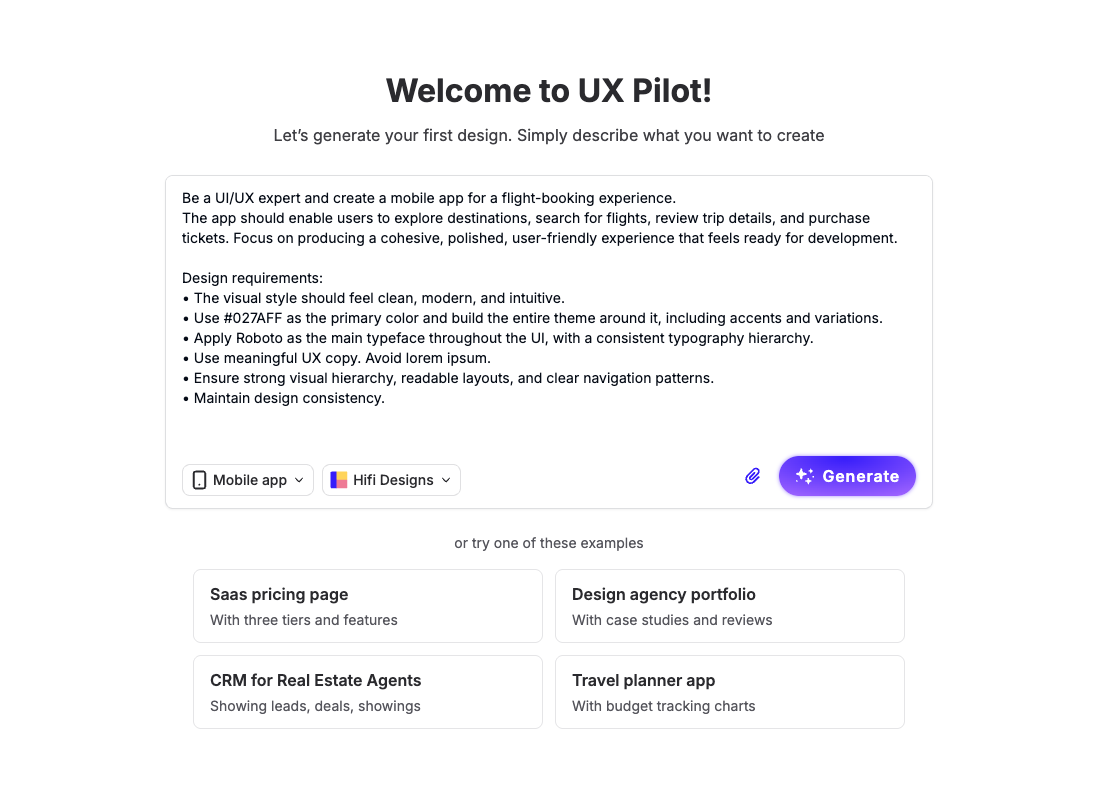
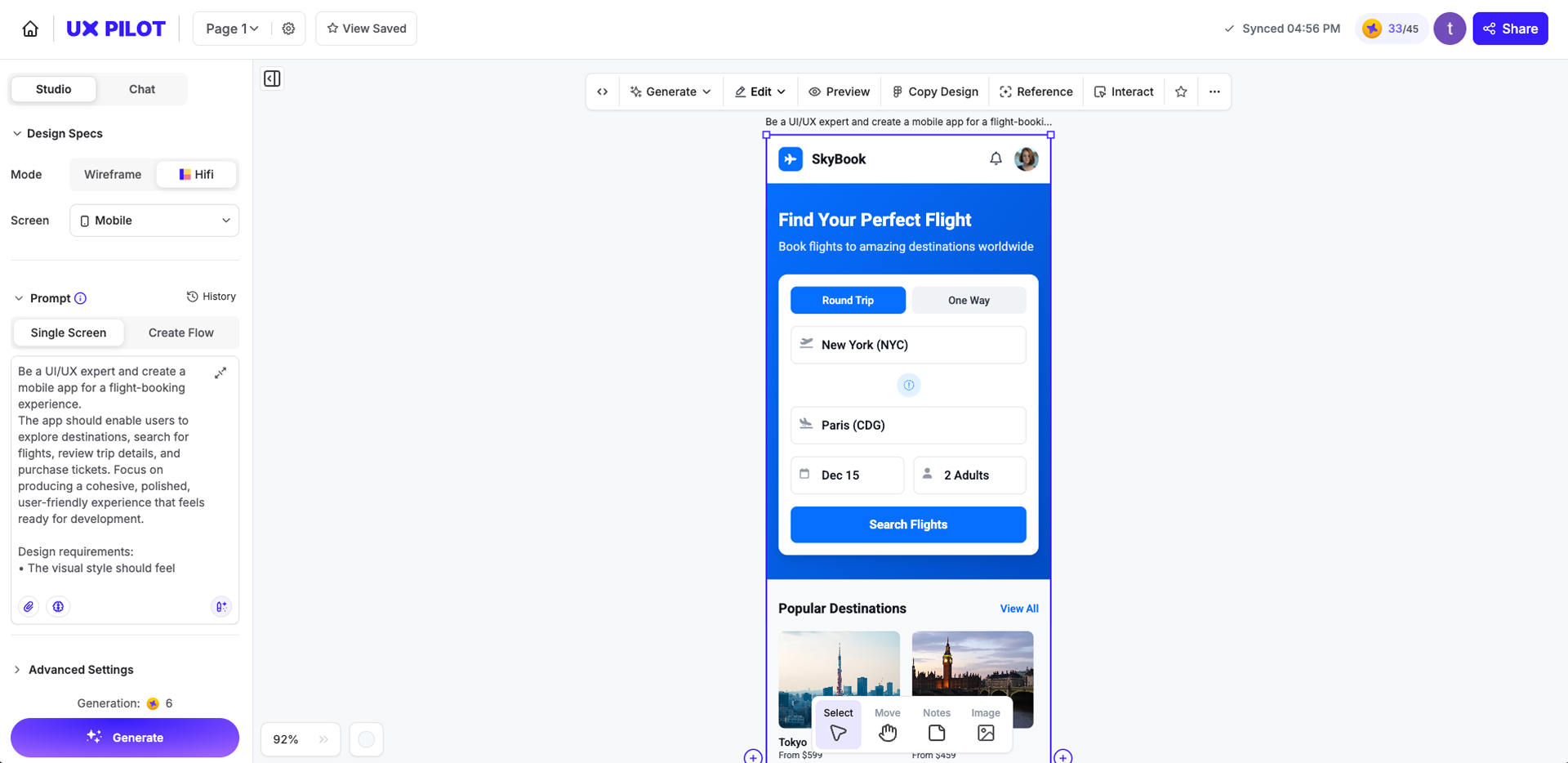
It uses a chat panel on the left side, where you can choose to create a single screen or generate a full multi-screen flow. In the advanced options, you can switch between different AI models and select or import a theme to use.
Once a view is generated, the top bar gives you options to edit things globally, adjust specific sections, or make manual edits. You can also regenerate the design, create variants, export the output, and more.
Result
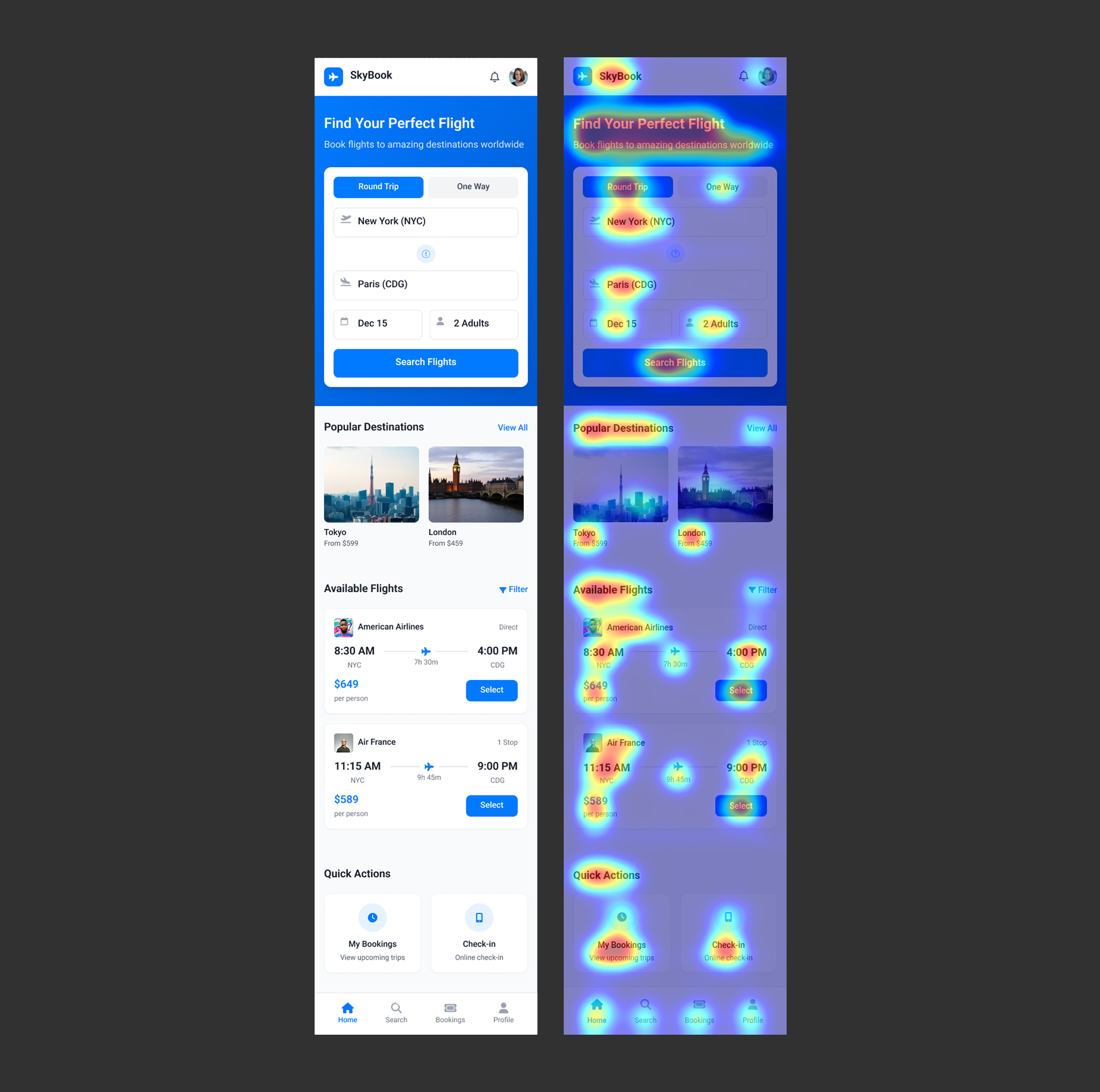
The initial result was a single screen, but in UX Pilot you can quickly add more screens to build out the flow. It also created a brand name called SkyBook along with a logo, which is surprisingly useful when you’re trying to validate an idea quickly. On top of that, the result has almost no visible errors.
UX Pilot was the only platform in this comparison that allowed me to generate a predictive heatmap. You just need to select a screen and generate the heatmap from there.
Evaluation
Fidelity: The result is very well executed. At the top, it highlights the main flight search functionality, and then it generated sections like popular destinations, available flights, etc. It also added some tentative tabs to help structure the flow.
Visual quality: UX Pilot followed the color and typography specified in the prompt, and it organized the content in a solid way. Once copied into Figma, the layout also makes good use of Auto Layout.
Usability: The initial output is strong, and since UX Pilot supports multi-screen flows, you can quickly add more screens if needed. This makes it easy to build an initial prototype that feels coherent and ready to explore further.
Iteration workflow: You can copy the result into Figma easily, before it required a plugin, but not anymore.
Inside the platform, you have options for manual editing, generating AI variants, adjusting global styles, or editing specific sections through prompts. You can also change theme parameters very quickly.
Code exportability: Only available on paid plans, but UX Pilot can generate HTML and CSS that you can download and preview directly within the platform.
Plans and pricing:
Free – Up to 7 screens and 45 credits
Standard – $14 USD/month (billed annually) – Up to 70 screens and 420 credits
Pro – $22 USD/month (billed annually) – Up to 200 screens and 1,200 credits
Teams – $31 USD/month per user (billed annually) – Up to 266 screens and 1,600 credits per user.
Pros
- Figma integration is available.
- It can interpret FigJam diagrams using AI.
- The Free plan includes a predictive heatmap feature.
- It offers a Figma plugin.
- Through the plugin, you can generate UI using your own Figma components.
- You can import or create custom themes.
- You can make manual adjustments using the edit mode.
Cons
- You can only export code or send the design to Figma on paid plans.
- There’s no desktop app, it only works in the browser.
- The free plan is quite limited.
Stitch (Google)
Stitch is an experimental Google tool for generating UI for both apps and web, starting from either a prompt or an image. The product was launched in May 2025 and is still in beta. It was one of the first tools capable of generating complete user flows from a prompt, instead of just isolated screens.
AI models:
- Gemini 3 Pro (Used)
- Gemini 2.5 Pro
- Gemini Fast
- Nano Banana Pro (for redesigning)
Interface
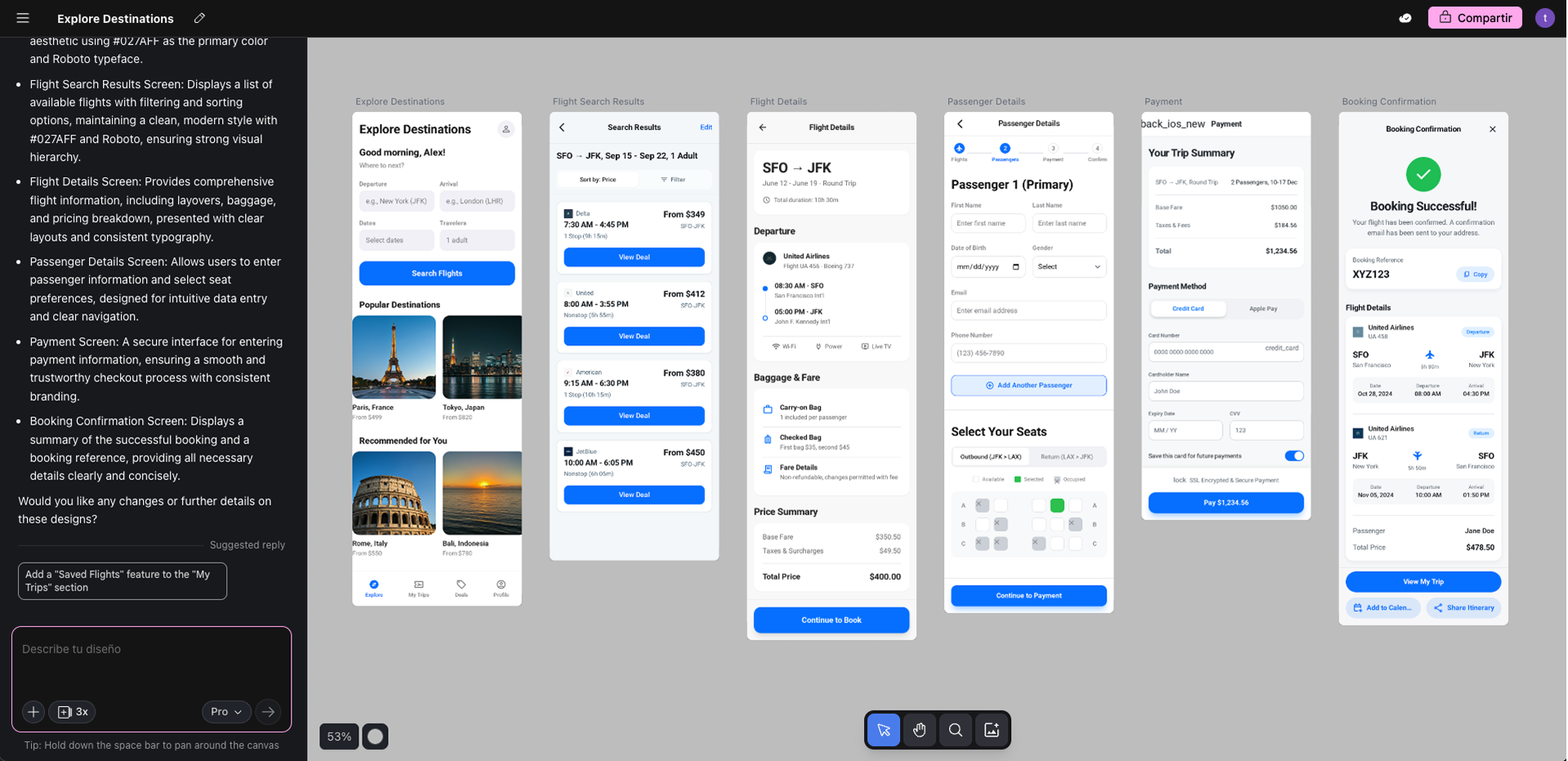
It also uses a chat panel on the left side, where you can switch between different AI models and generate three automatic variants with a single click. Then, by selecting each view at the top, you get options to adjust the style, regenerate the output, export it, download it, copy it to Figma, or view the code.
Result
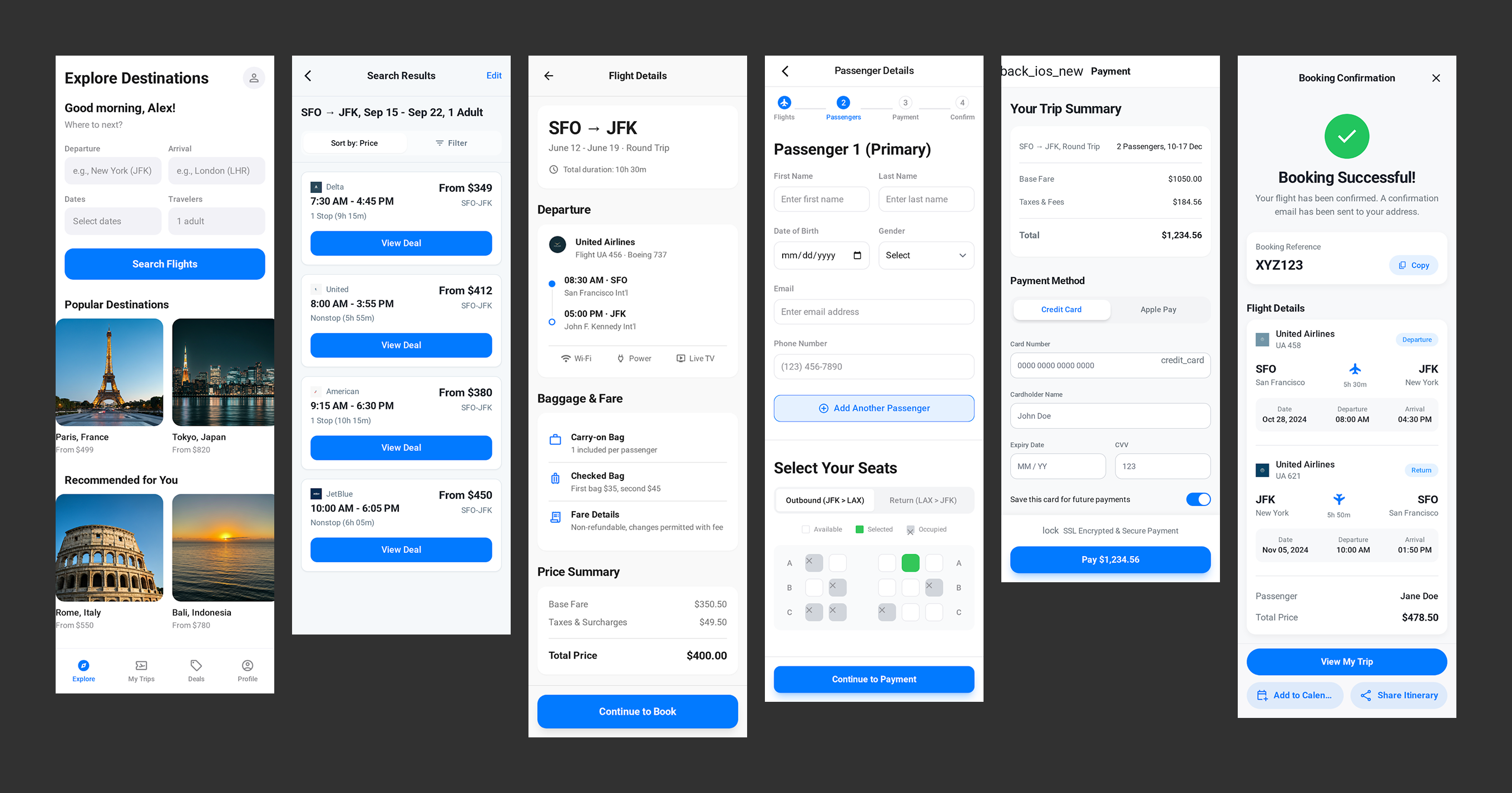
The initial output generated by Stitch is multi-screen, covering the main flow for purchasing a ticket. It created a flight search screen and organized the information in a fairly solid way.
Overall, the flow feels functional, but there are some inconsistencies. For example, it uses a step indicator but places everything on a single screen. Across the different screens, the back icons aren’t consistent, and the background colors vary in ways that break the flow’s cohesion. The primary and tonal buttons also show inconsistent corner radiuses, especially on the booking confirmation screen.
There are also a few errors, such as the payment screen failing to render the back icon.
Evaluation
Fidelity: Stitch understood the prompt well and generated the main flow correctly.
Visual quality: Stitch respected both the color and the typeface specified in the prompt. The resulting UI is fairly minimal and shows a good hierarchy.
Usability: I think the initial output is a good starting point. With a few minutes of adjustments, you could fix the inconsistencies and errors and end up with a much more polished prototype.
Iteration workflow: Stitch isn’t a design platform itself, so it has some limitations. However, migrating the design to Figma is simple thanks to the “copy to Figma” feature.
Inside Stitch, you can easily generate variants using a built-in feature that lets you choose how many options to create, provide custom instructions, and specify which aspects should vary. You can also quickly switch themes, dark/light mode, primary color, border radius, and font. On top of that, you can continue refining any generated screen using AI prompts.
Code exportability: Stitch generates HTML and CSS that you can download or preview directly on the platform. You can export the project to Jules or push it directly to a GitHub repository.
Plans and pricing: Free - 150 daily credits and 15 daily redesign credits.
Pros
- It’s a free tool.
- It generates a complete app flow, not just individual screens.
- Once exported to Figma, the layout makes proper use of Auto Layout.
- It includes a redesign feature that can rework an existing app using Nano Banana Pro.
Cons
- It’s not a design tool on its own. If you want to make manual changes, you’ll need to move the project to another platform.
- There’s a daily limit on how many screens you can generate, though it’s usually enough unless you’re producing a large volume.
- There’s no desktop app, you can only use it in the browser.
Other AIs worth exploring
These are additional AI tools I didn’t test in this comparison, but you can try them yourself using the same prompt:
- Uizard
- Banani
- UXMagic
Conclusions
All the tools we reviewed are functional, but I think Figma Make clearly takes first place. Its ability to generate interactive prototypes, produce full flows quickly, and stay fully integrated within the Figma ecosystem makes it a strong option. The only downside is that it’s locked behind a paid membership.
In second place, I’d put Stitch. It also generates a complete flow, exports to Figma easily, and most importantly it’s completely free. That makes it a very appealing choice if you’re not deeply involved in UI/UX or simply don’t want to pay for another subscription.
Third place goes to UX Pilot, which is also a solid tool. It stands out thanks to features that others don’t have, like diagram interpretation, predictive heatmaps, and more advanced editing options.
As a final thought, I don’t believe AI will fully replace UI/UX designers anytime soon. But I do think it will continue becoming a fundamental part of the workflow, helping us optimize processes, speed up execution, explore multiple variations quickly, and cut down a lot of time on early-stage layouts.
Still, you’ll always need someone who truly understands the business model, the user, and the context, someone with the judgment needed to craft the right prompts, make the right adjustments, and finish the product properly. So while the design process is evolving, the designer's role remains essential.
Thank you for reading
Stay tuned and subscribe to Mobile Dev Experiences to be part of this growing community where we share strategies, insights, and real-world lessons in cross-platform mobile development.